
Text to Table Workflows
Ce contenu n’est pas encore disponible dans votre langue.
Use these workflows to decide how Text to Table should open and what happens after conversion.
Choose the Right Path
Section titled “Choose the Right Path”- Use Standard Insert when the source text is already clear and you want the fastest result.
- Use Open in Table Editor when you want to check the conversion before you apply it.
- Use Start Without Selected Text when you want to create a new table from pasted text, a file, or a blank grid.
Menu and Sidebar Behavior
Section titled “Menu and Sidebar Behavior”- Extensions menu:
Extensions>Text To Table Converter>Selected Text to Table - Sidebar: Convert & Format > Selected Text To Table
The Extensions menu follows your saved Output Mode preference. The sidebar always gives you both options directly:
- primary button for Standard Insert
- caret (▼) for Open in Table Editor
Standard Insert
Section titled “Standard Insert”Use Standard Insert when you want the fastest path from selected text to a finished table.
- Select the text you want to convert.
- Open
Extensions>Text To Table Converter>Selected Text to Table, or click the primary Selected Text To Table button in the sidebar under Convert & Format. - The add-on converts the selection and inserts the table immediately.
Use this path for clear CSV-style text, quick delimiter-based conversions, or repeated actions where you do not need to review the result first.
Open in Table Editor
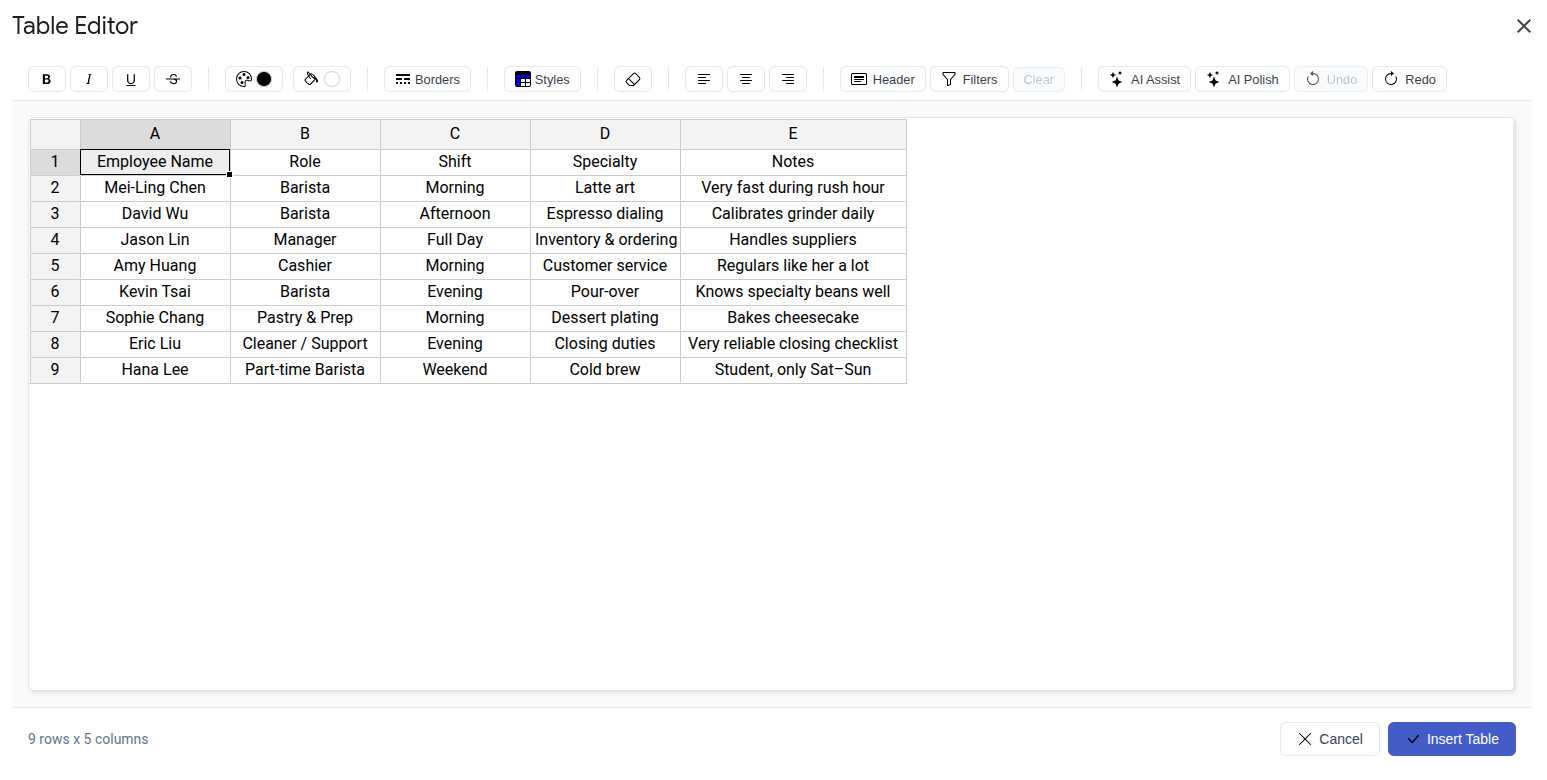
Section titled “Open in Table Editor”Use Open in Table Editor when you want to review the converted table before you apply it.
- Select the text you want to convert.
- In the sidebar, open Convert & Format.
- Click the caret (▼) on Selected Text To Table.
- Choose Open in Table Editor.
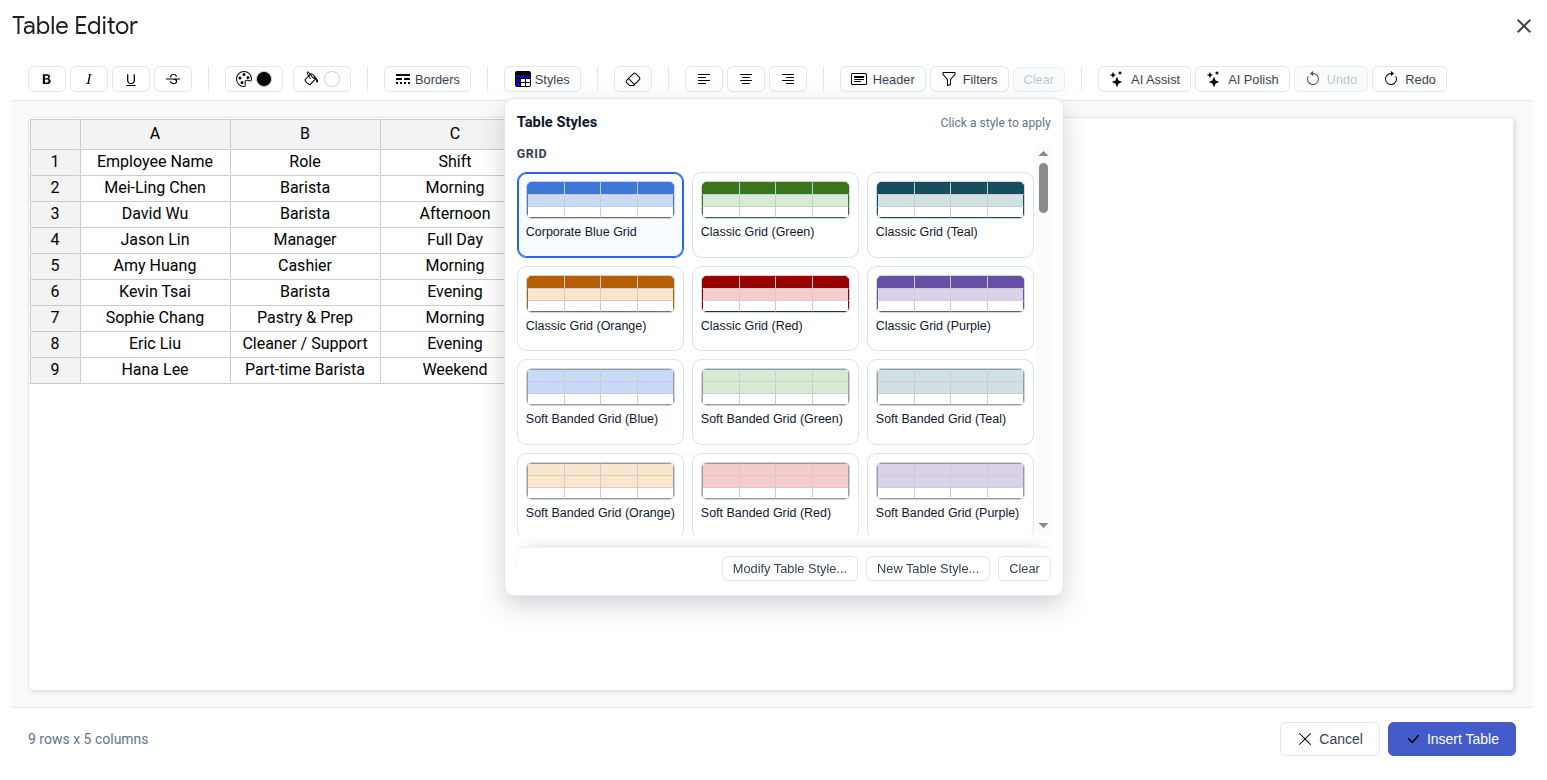
- Review the converted table, make changes if needed, and click Apply.
Use this path when the source text is messy, when you want to fix headers or spacing, or when presentation quality matters.

Start Without Selected Text
Section titled “Start Without Selected Text”If you run Text to Table without selecting text first, the feature opens Table Editor automatically so you can start a new table.
You can start from:
- From Text to paste content and convert it in the editor
- From File to import
.csv,.tsv,.txt, or.xlsx - Empty Table to start with a blank grid