
Text to Table Settings
Open Text to Table settings in:
Extensions > Text To Table Converter > Language & Settings
These options affect how conversions open and when AI is used.
Output Mode
Section titled “Output Mode”Output Mode controls what happens when you run Text to Table from the Extensions menu.
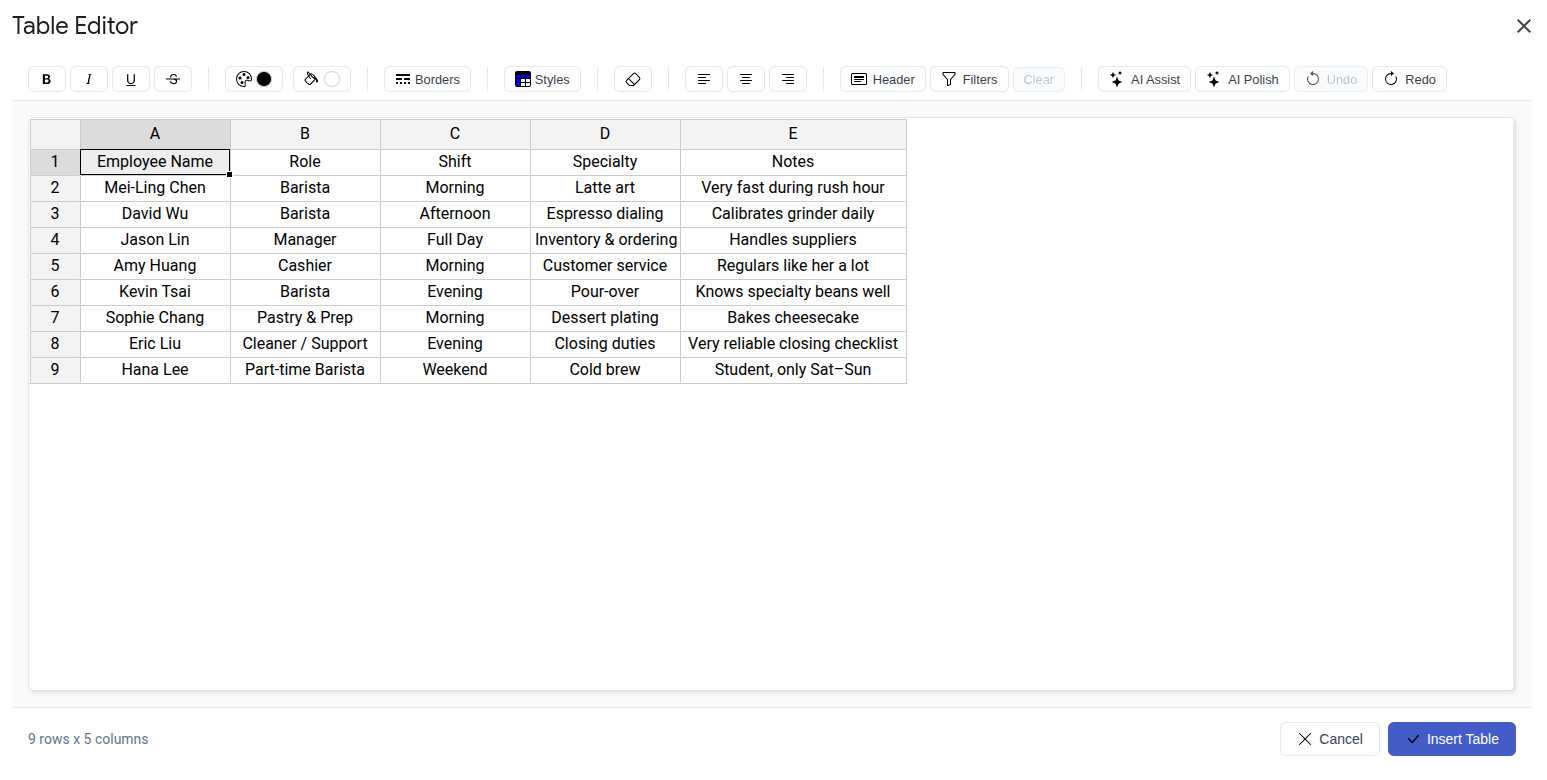
- Open in Table Editor: converts the text, then opens the result in Table Editor
- Standard Insert: converts the text and inserts the table immediately
Remember Output Mode
Section titled “Remember Output Mode”Turn on Remember Output Mode if you want the Extensions menu to keep using your preferred output mode.
The sidebar still gives you both choices directly:
- primary button for Standard Insert
- caret (▼) for Open in Table Editor

AI Options
Section titled “AI Options”- Always use AI: uses AI for all Text to Table conversions, even when the input already looks structured
- AI Permissions: controls whether AI use is
Allow,Ask, orDeny - Enable AI Refinement: runs an optional second AI pass for more cleanup and structure improvements
AI Refinement Options
Section titled “AI Refinement Options”These options matter only when Enable AI Refinement is turned on.
- Table Orientation Preference: helps the AI decide whether the data should be organized horizontally or vertically
- Date & Time Formatting: standardizes detected dates and times
- Number Formatting: standardizes detected number formats
- Data Cleaning: can trim whitespace, remove currency symbols, and normalize case
- Correct Spelling & Grammar: cleans up cell content during refinement
Google Sheets Option
Section titled “Google Sheets Option”In Google Sheets™, you can also choose how inserted tables are formatted after conversion.
Related Links
Section titled “Related Links” Convert Text to Table Return to the main Text to Table guide.
Tips for Better Results See when to rely on AI and how to prepare input for cleaner conversions.
Language & Settings Open the full settings reference page.