
Remove Image Background
Create professional-looking graphics directly inside Google Workspace. This tool allows you to isolate subjects from photos, removing distracting backgrounds to create transparent cutouts for your documents, spreadsheets, and presentations.


Common Use Cases
Section titled “Common Use Cases”- Professional Presentations: Remove white boxes from logos or graphics so they “float” cleanly on your Google Slides™ themes.
- Product Catalogs: Isolate items from their surroundings to create consistent, clean product images for inventory lists in Google Sheets™.
- Social Media Content: Use the 9:16 (Stories) or 1:1 (Post) aspect ratios to prepare images for Instagram or TikTok directly from your Drive.
- Team Directories: Create uniform employee headshots for resumes or “Meet the Team” slides by removing busy office backgrounds.
How to Access
Section titled “How to Access”You can access the background remover through the add-on sidebar or the extensions menu:
- Sidebar: Open the PDF & Image Tools tab and click Remove Image Background.
- Menu: Go to
Extensions>Text To Table Converter>Remove Image Background.
Step-by-Step Guide
Section titled “Step-by-Step Guide”-
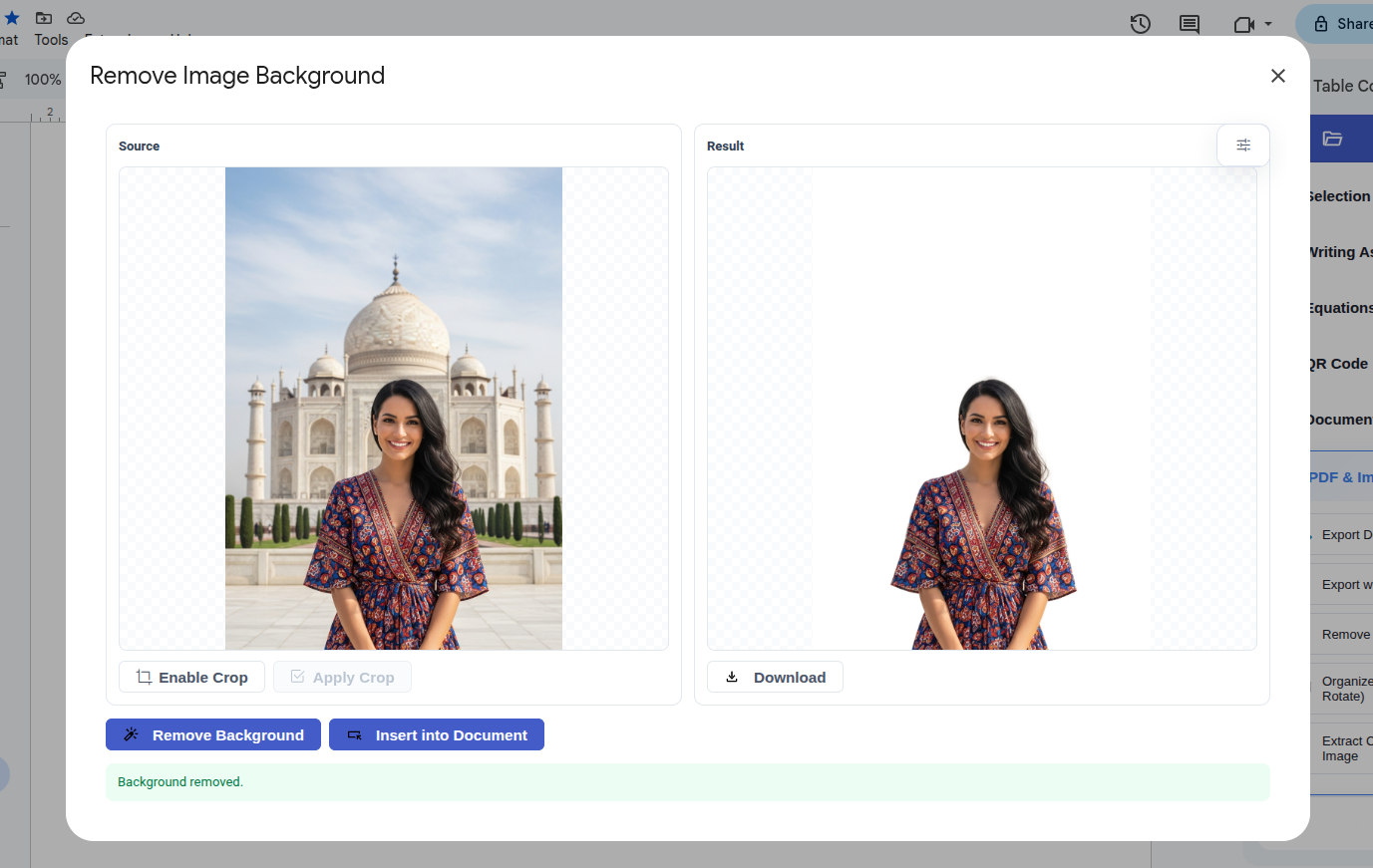
Launch the Tool Open Remove Image Background using one of the access methods listed above.
-
Select Your Image You have three ways to load an image:
- Selection: Click on an image already inside your document.
- Upload: Click the upload button to choose a file from your computer.
- Paste: Paste an image directly from your clipboard.
-
Refine & Process (Optional) Use the crop tool to focus on your subject, then click Remove Background.
-
Insert or Download Preview the result and click Insert to add it to your document, or Download to save it locally.
Advanced Options
Section titled “Advanced Options”Click the Options toggle (sliders icon ) on the right side of the window to open the advanced settings drawer.
1. Canvas & Sizing
Section titled “1. Canvas & Sizing”Control the dimensions of your final image.
- Match Image (Default): Crops the canvas tightly around the subject (removes empty space).
- Original: Keeps the original image dimensions. Useful if you plan to overlay the cutout onto the original background later.
- Custom: Allows you to set specific pixel dimensions or choose a preset aspect ratio:
- 1:1 (Square): Best for profile avatars and standard Instagram posts.
- 16:9 (Widescreen): Perfect for Google Slides™ backgrounds, YouTube thumbnails, or headers.
- 9:16 (Vertical): Ideal for mobile formats like Stories, Reels, or TikTok.
- 4:3 / 3:4 (Standard): The classic ratio for digital photography and prints.


2. Visualization & Backgrounds
Section titled “2. Visualization & Backgrounds”Change how the preview looks to ensure your edges are clean.
- Preview Background: Switch between a checkerboard (transparent), white, black, or a custom color.
- Tip: Use a black background to check for white “halos” or jagged edges around your subject.
- Note: If you download as a JPG, the selected background color will be saved with the image.
3. Output Behavior
Section titled “3. Output Behavior”Decide how the image is placed in your document.
- Insert New: Adds the cutout as a new image.
- Replace Selected: Replaces the image currently selected in your document with the new cutout. This is great for updating placeholders in templates.
4. File Format
Section titled “4. File Format”- PNG: Best for transparency (cutouts).
- JPG: Smaller file size, but no transparency (solid background).
Privacy & Security
Section titled “Privacy & Security”We prioritize your data privacy with a client-side approach:
- Local Processing: The image processing is performed entirely within your web browser.
- No External Uploads: Your images are never sent to external servers for background removal. They remain securely within your Google Workspace ecosystem.