
Add a QR Code to Handouts So Students Never Lose the Doc (Teacher Guide)
Handouts go missing. Students forget where they put a sheet. Papers disappear between classes. You can prevent the scramble with a tiny QR code at the top of the page. It’s especially helpful for printouts of Google Docs™ pages, but the same idea works for presentations made in Google Slides™ and spreadsheets in Google Sheets™.
The One-Page Fix
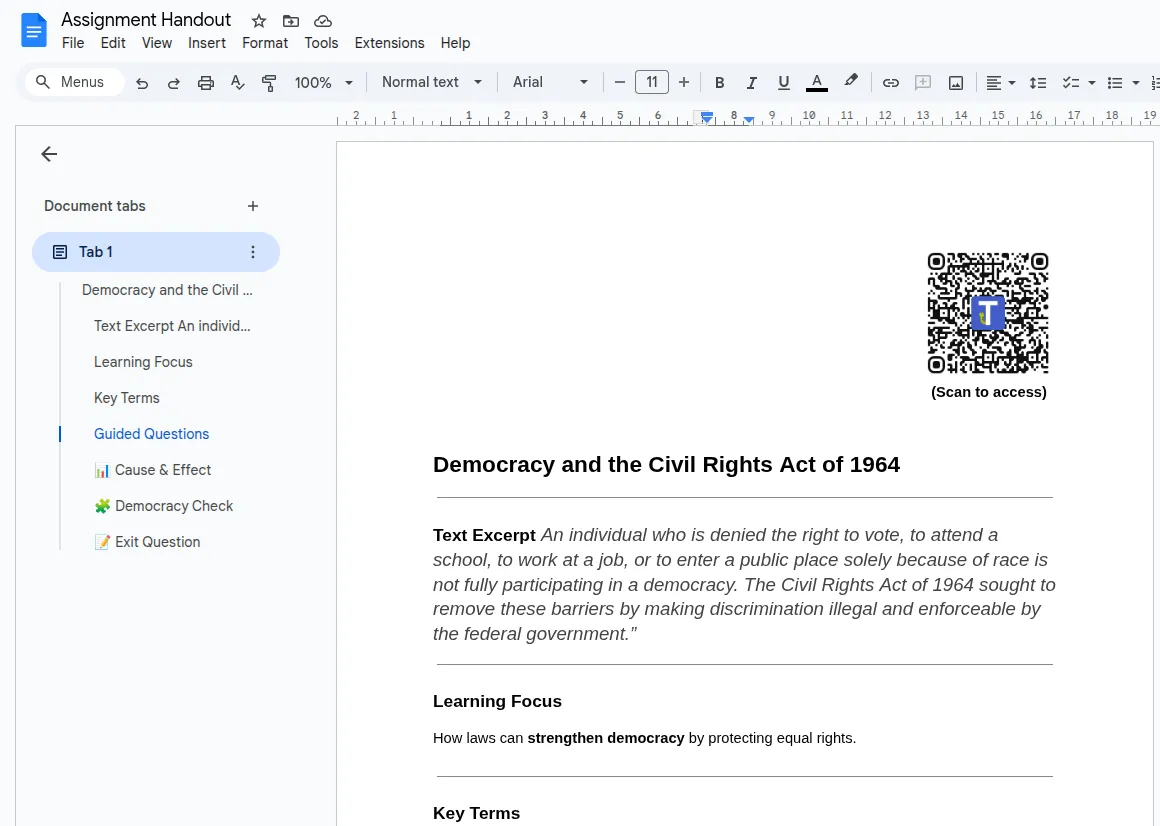
Section titled “The One-Page Fix”Print a single-page handout. At the top, place a QR code that links to the original document.
When a student loses their page, they can scan a friend’s copy and instantly open the document on their device.
How Teachers Use It
Section titled “How Teachers Use It”- Quick recovery: “Lost your page? Scan your friend’s.”
- Easy reprints: Open the doc and print again without hunting for files.
- Less disruption: Students solve the problem themselves in seconds.
- Self-checking: Put a “Check Your Work” QR code at the bottom of a worksheet that links to an answer key or worked-out solution.
Set It Up in Seconds
Section titled “Set It Up in Seconds”- Open your Google Doc™, Slide, or Sheet.
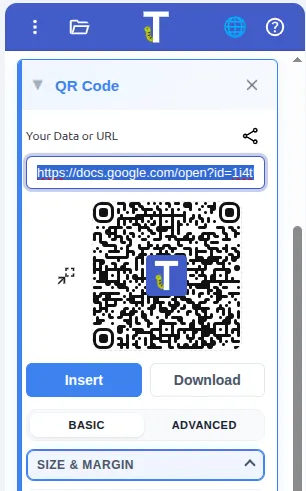
- Open the add-on sidebar and go to QR Code.
- Click the link icon next to the input field to Share this document via QR code.
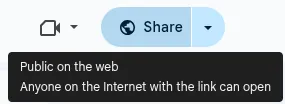
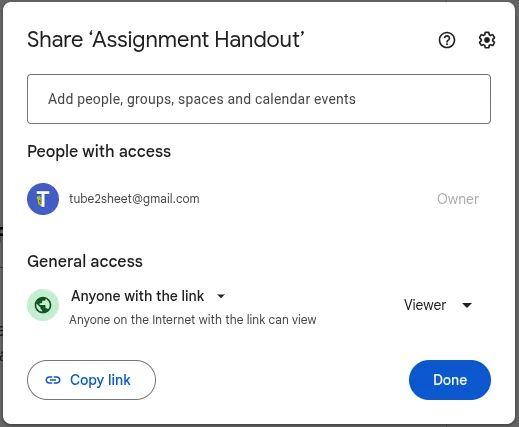
- Open Share in the top-right and set Anyone with the link to Viewer so students can open the file immediately after scanning the QR code. Otherwise, each student would have to request access.
- Insert the QR code at the top of your handout and print.
Related Post
Section titled “Related Post” Add QR Code with Video Link to a Google Doc (Teacher Guide) Link a QR code to a YouTube lesson video for context and review.
Get the Add-On
Section titled “Get the Add-On”Create classroom-ready QR codes directly in Google Docs™, Slides™, and Sheets™.

Make classroom QR codes for free
Use the free Text To Table Converter add-on to insert QR codes in Docs™, Slides™, and Sheets™.